Moving Your Running Setup to a New iPhone
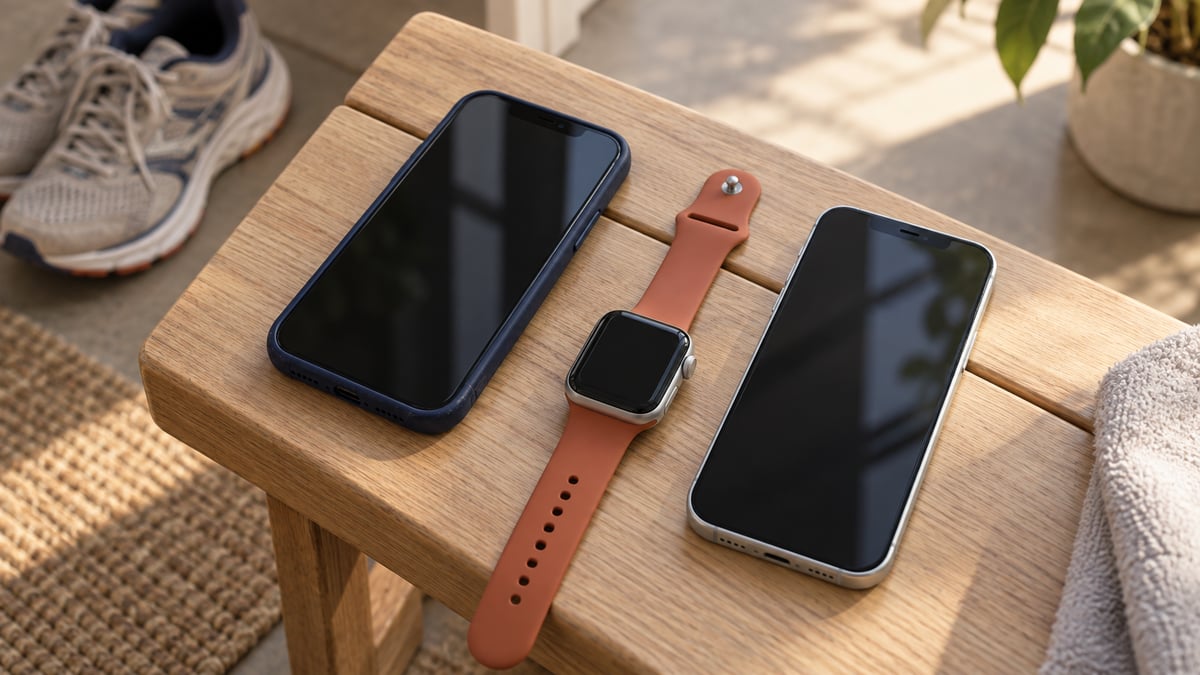
Moving an Apple Watch to a new iPhone involves more than getting the watch face back on your wrist. Your running history needs to be available, the watch needs to connect to the replacement phone, and accounts that use verification codes need to remain accessible. Check those separately while the old phone still works, rather than treating a familiar home screen as proof that the move is complete.
Apple’s watch transfer instructions distinguish between the backup routes. With iCloud, check that Health synchronization is enabled. With a computer, encrypt the backup to preserve Health and Activity content. Backing up the paired iPhone also backs up the Apple Watch, so prepare the phone before starting the transfer.
Prepare the old phone
Update the old iPhone and watch before making your backup. Open Settings, tap your name, then iCloud, Saved to iCloud, and then Health. Confirm that Sync This iPhone is on if you’re using that route. For a computer backup, check the encryption setting before making the copy you intend to restore. Choosing a backup method and confirming that it contains the information you need are separate tasks.
For an iCloud backup, return to the iCloud settings, choose iCloud Backup, and tap Back Up Now. Stay connected to Wi-Fi until it finishes, then check the displayed date and time beneath that button. Enabling automatic backups doesn’t replace confirming that the latest backup has completed before you begin setting up the replacement phone.
Before switching phones, open a recent run and an older workout on the old iPhone. Note their dates so you can find the same records afterward. This gives you something specific to check beyond an activity total or a familiar app icon.
Account access also needs attention before the old handset is cleared. A saved password, a temporary verification code generated by an authenticator app, and a trusted browser serve different purposes.
We can understand this more clearly if we look at another kind of account – say, for instance, a casino account, which you might want to swap from one device to another without losing data. That’s especially true if you have achievements or ranks that you want to retain, or if you’ve got money deposited in the account.
To check whether a device has synced properly, you need to open the platform and look for various cues. Simply opening an existing browser session doesn’t establish that the replacement phone can complete verification or that you’ll have straightforward access. At Lucky Rebel, removing a trusted browser means a two-factor code is required at its next login, and you need to make sure this code will appear on your new device, not your old one. Keep the working authenticator available while establishing access on the new phone. A browser that remembers the account cannot tell you whether the code generator has transferred.
Two-factor authentication uses an additional verification step alongside the password. Check which app generates your codes and how that app moves its entries. You can investigate those options before transferring anything, without changing the account’s security settings or removing a browser you still use. Doing it with accounts such as casino accounts can make the whole process feel clearer and more straightforward.
Once you’ve made the transfer, check that data matches and all stats are as you would expect, whether that’s game history or the balance. This ensures everything has transferred as expected.
Connect the watch to the new iPhone
Have your Apple Account password and watch passcode ready. Connect both phones to Wi-Fi and charge the watch and new phone to at least 50 percent.
Set up the replacement iPhone using the latest backup if you’re restoring from iCloud or a computer. When setup asks whether you want to use the watch, keep it unlocked and on your wrist, then continue. If that prompt doesn’t appear, open the Watch app on the new iPhone with the watch nearby and follow the instructions there.
Don’t start by erasing the watch because you’ve changed phones. Apple’s transfer guide directs you to unpair it if the new phone asks you to Start Pairing. Follow the branch that matches the prompt you see.
Unpairing through the paired iPhone erases the watch and removes Activation Lock, Apple’s account-based ownership protection. Erasing directly on the watch leaves that lock in place. Those actions aren’t interchangeable, even though both remove content from the watch.
Once setup finishes, use the new phone’s Watch app to confirm that the watch is paired. Then check the workout records you identified earlier. A successful pairing and a complete history answer different questions.
Move the authenticator separately
An authenticator’s transfer options depend on the app and the settings you enabled. Installing it on the replacement phone is only the starting point; check whether the account entries you need are present.
Proton’s Authenticator announcement describes optional synchronization, automatic backups, and import and export tools. It also allows codes to remain local to one device. Those are different configurations within one app, which is why “I have an authenticator” says little about how its contents will move.
Use the instructions for the authenticator you have. Check its available backup or synchronization settings on the old phone before beginning. Complete its supported transfer or synchronization process, then check access to the accounts from the replacement device.
Seeing an entry produce a code is useful, but having that code accepted verifies more. When an account requests one, use the code from the new phone. Keep the old handset available until you’ve completed the checks that matter to your setup.
Check the next recorded activity
Before retiring the old phone, record and save a short walk or run with the watch. Confirm that it appears on the replacement iPhone, then open its details. Compare the date, duration, and distance with the activity saved on the watch. Check any separate training app you use as well, following its own account and synchronization instructions.
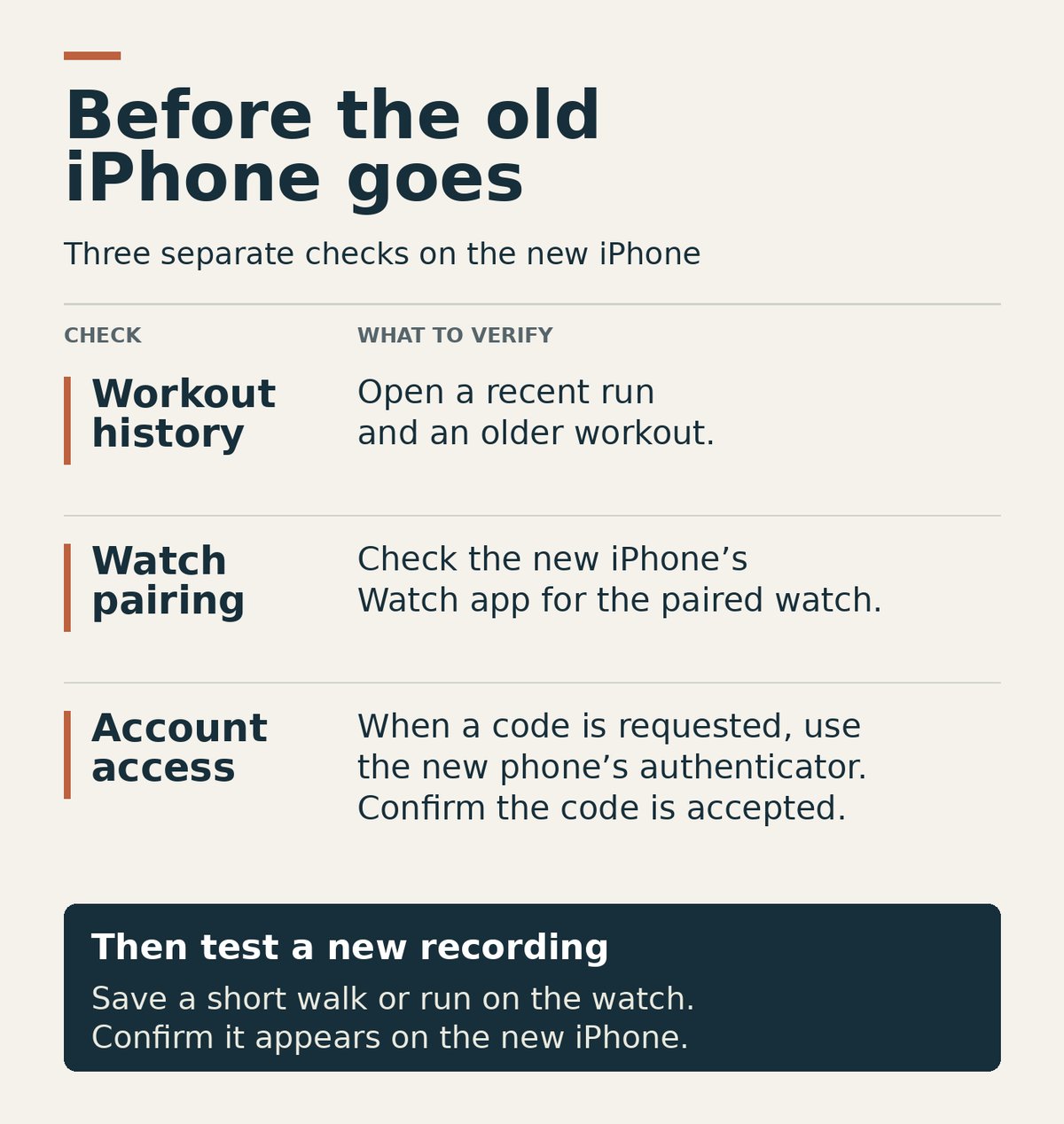
This tests new recording alongside the older history you checked earlier. Your setup is ready when the records you need are available, the watch can deliver another activity, and account verification works without reaching for the old handset.
Last Updated on 25 September 2026 by the5krunner
My favourite kit and nutrition
- Garmin Fenix 9 Pro — I’ve just bought one.
- Injinji – Runners protect your toes. Avoid discomfort and minor injury. Run more. Run faster. I use them.
- Garmin 90-degree charging adapter — A small keyring adapter you can use anywhere. Essential when away. I use one.
- Garmin charging puck — the fastest and most reliable way to top up your Garmin before a session. I use one.
- Ravemen FR300 — Front light that mounts directly under your Garmin or Wahoo head unit. Keeps your bars clean and your beam pointed where it matters. I use one.
- Body Glide – The blue anti-chafe stick that all swimmers and many runners use. I use it.
- Maurten — The race nutrition trusted by elite athletes. Gels and drink mixes engineered to be easy on the stomach. I use them.
- Garmin Varia RTL515 — A radar rear light that alerts you to vehicles approaching from behind. Pairs with your Edge or Wahoo. I use this model.
- Favero Assioma Pro RS2 — The power-meter pedals most serious cyclists choose. Accurate, easy to move between bikes. I use this model.
- Garmin Forerunner 970 — A serious choice for a pro-grade triathlon watch. I use this.
- Polar H10 — My daily driver for accurate, waking HRV readings.
- Wahoo ELEMNT Roam 3 — The bike computer that has the feature Garmin lacks: usability. I use mine on most rides.
Reader-Powered Content
This content is not sponsored. It’s mostly me behind the labour of love, which is this site, and I appreciate everyone who supports it.
Support the site: Follow (free, fewer ads) · Subscribe (paid, ad-free) · Buy Me A Coffee ❤️
All articles are written by real people, fact-checked, and verified for originality. See the Editorial Policy. FTC: Affiliate Disclosure — some links pay commission. As an Amazon Associate, I earn from qualifying purchases.

theparkrunner is a contributing writer covering road races, endurance events and the travel side of racing life. Reports focus on upcoming events, race destinations and what athletes need to know before they arrive.
