A friend told me I could plug my Forerunner 970 into my PC, let Claude write a watch face, and put it on the watch without Garmin Connect or Garmin Express. He was right. In an afternoon, I had a Matrix-style digital rain face. When I raise my wrist, green Japanese characters pour down the screen over the time and wash away the battery and heart rate readouts.
I can’t code, and I didn’t write a line of it. My job was the setup, describing what I wanted in plain English, and testing each version on my wrist.
What you need
- A Garmin watch that runs Connect IQ apps. I used a Forerunner 970.
- A Windows PC or Mac and the watch’s charging cable.
- A free Garmin account.
- The Claude desktop app, so Claude can work in a folder on your computer.
What I had to set up
Garmin gives away the tools that turn code into a watch face. They come in a free download called the Connect IQ SDK. You install it once and never open it again – Claude uses it for you.
- I downloaded the SDK Manager from Garmin’s Connect IQ developer site, unzipped it into a folder on my desktop and signed in with my Garmin account.
- In the SDK Manager, I downloaded the latest SDK (version 9.3), and then Forerunner 970 from the Devices tab.
- I gave Claude access to that desktop folder when it asked.
- Claude couldn’t reach the place where Garmin stores those downloads. I pressed the Windows key and R, pasted %APPDATA%\Garmin\ConnectIQ, pressed Enter, and copied the folder that opened to my desktop.
That was all of it. Claude handled everything else.
Installing a face
Each time Claude built a new version, it saved one file ending in .prg in my folder. That file is the watch face. Installing it took seconds:
- Plug in the watch. On Windows, Forerunner 970 appears in File Explorer as a device, like a phone. On a Mac, you need a free app such as OpenMTP.
- Open Internal Storage > GARMIN > APPS and drag the .prg file in.
- Unplug the watch, hold the Up button, choose Watch Face and pick the new face.
Getting from idea to finished face
My first face copied (hmmm!) Apple’s Wayfinder, with a compass bezel around the time.
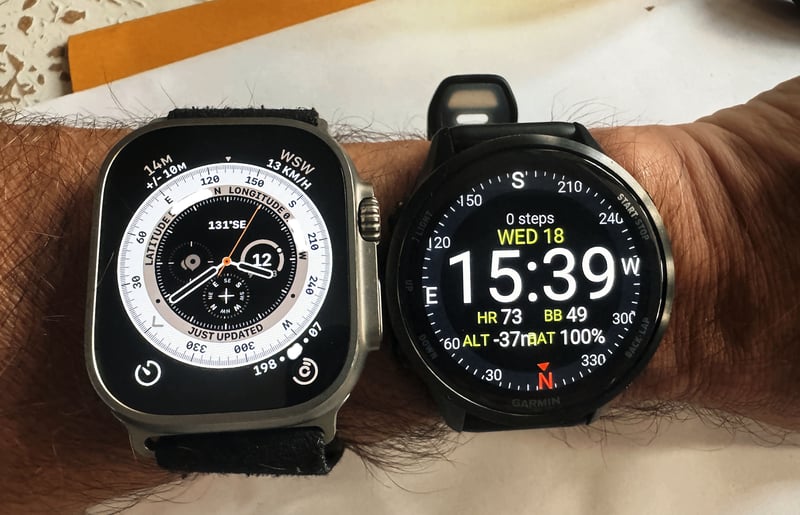
Then I moved on to the Matrix rain. I told Claude what I saw on the watch after each version and kept asking in English for touches that made it look more like the film:
- Rain falling in every column, from the top of the screen.
- Columns starting at random times and falling at different speeds.
- Mirrored Japanese katakana characters, as in the original film, in place of English letters.
- A white leading character in each column, with a tail that fades through three greens.
- The battery, heart rate and Body Battery readouts washed away as the rain passes, with the time showing through.
- A battery icon that shows the charge level, and a heart icon, in place of text labels.
- Rain that starts the moment I raise my wrist and runs for as long as the screen stays on.
Installing each new version was a drag-and-drop. If you’d rather pick a ready-made face, the best Garmin watch faces chart lists the most popular ones, and I’ve also covered every Forerunner 970 watch face that Garmin supplies.
The prompt to make your own
Paste this into the Claude desktop app and fill in the parts in square brackets. Claude takes you through each step and waits where it needs you to do something.
I want to make my own watch face for my Garmin [watch model] and install it without Garmin Connect, Garmin Express or the Connect IQ Store. I’m on [Windows / Mac]. I can’t code, and I don’t want to learn, so do all the technical work yourself. Take me through my part one step at a time, in plain English, and wait for me to confirm each step.
1. Tell me how to download Garmin’s Connect IQ SDK Manager, sign in with my Garmin account, and download the latest SDK and the device files for my watch.
2. Tell me which folder to create, and ask me for access to it. If you can’t reach the folder where the SDK Manager stores its downloads, tell me how to copy them into my folder.
3. Create the developer key yourself, keep it in my folder, and use the same key for every build.
4. Here’s the face I want: [describe it, for example “Matrix-style digital rain that falls over the time when I raise my wrist, using mirrored katakana characters, then clears to show the time, battery, heart rate and Body Battery”].
5. Build the face for my watch and save the .prg file in my folder. Then tell me exactly how to copy it onto the watch over USB and select it.
6. Keep within Garmin’s rules for watch faces. If something I ask for isn’t possible, tell me why and suggest the closest thing that is.
7. If the animation stutters, find out where the time goes before changing anything, for example by showing timing figures on the watch screen that I can photograph for you.
8. Before calling it finished, check your work against Garmin’s documentation for faults.
After each version, I’ll tell you what I see on the watch and what I want changed.
If you want to change things from here, such as modifying the complication, tell Clausde what you want in plain English. The slow part is physically waiting for the FR970 to be recognised by the PC, then finding and copying the file across to the right folder.
Quick answers
Can I install a Garmin watch face without Garmin Connect?
Yes. Copy the .prg file into the GARMIN/APPS folder on the watch over USB, then select the face on the watch.
Do I need to know how to code to make a Garmin watch face?
No. Claude wrote all of the code for me. I installed Garmin’s free Connect IQ SDK, described what I wanted and tested each version on my watch.
Why does my animated Garmin watch face stop after a few seconds?
Garmin only lets a watch face animate while the screen is awake after a wrist raise, typically about 10 seconds. After that, the face can redraw only once a minute.
Last Updated on 18 November 2026 by tfk the5krunner
Small things I always use
- Garmin 90-degree charging adapter: Charges your Garmin with any USB-C cable. Essential when travelling. I use one.
- Body Glide: The blue anti-chafing stick swimmers and runners carry. I use it.
- Speedo earplugs: Fewer ear infections and no cold-water dizziness. I use them.
- Dryrobe Advance: My winter changing robe for open-water swims. I use one. A cheaper option is the AONYIYI changing robe.
- Maurten: Race fuel that stays easy on the stomach. I use them.
- Beet It Sport nitrate shots: Beetroot shots I take in the days before a race. I use them.
- Garmin charging puck: The quickest way to top up before a session. I use one.
- Injinji: Toe socks that stop rubbing, so you run more. I use them.
- Ultimate toe protectors: Stop black toenails on long runs. They work. I use them.
- Compressport R2 v2 calf sleeves: My calf sleeves of choice. I use them.
- Cellucor C4: My pre-workout before hard sessions.
- TPU tubes: Schwalbe Aerothan, Tubolito and Pirelli SmarTube. Light, tiny spares. I use all three.
- G8 insoles: Adjustable arches, perfect position. I use them.
- Cycplus Cube: A 97g electric pump that gets a road tyre rideable in two minutes. I carry one. 5% off with code THE5KRUNNER.
Health, recovery and sleep
- Kineon MOVE+: Red and infrared light for sore knees, Achilles and other joints after hard training. I use it.
- FreeStyle Libre 3 Plus: Shows how my blood sugar responds to diet. Occasional use.
- hDrop: Measures my sweat loss in summer and indoors. I use it.
- Fourth Frontier Zone: Checks my heart under load in hard sessions.
- Oura Ring 5: My partner’s recovery tracker of choice.
- Eight Sleep: A cooling mattress cover my partner and I use nightly.
Watches and sensors
- Polar H10: My daily driver for waking HRV.
- Polar Verity Sense: My backup arm-worn HR sensor.
- Nomad bedside charger: Charges my iPhone and Apple Watch overnight. I use it, and many of their bands.
- Train.Red: The best muscle oxygen sensor I’ve used. Occasional use.
- Tymewear: Accurate heart rate and reliable ventilatory zones. I use it to pace endurance rides over an hour.
- Garmin Forerunner 970: A pro-grade triathlon watch. I use this.
- Apple Watch Ultra 4: My daily smartwatch. No phone needed on rides.
On the bike
- Continental GP5000 for everyday riding, and Aero 111 on the front for special occasions. I use both.
- Helmets: Specialized S-Works Evade 3 for road riding, and Rudy Project Wing for TT-style races. I use both.
- Ravemen FR300: A front light that mounts under your Garmin or Wahoo. I use one.
- Ravemen FR1000: The light and the computer mount in one unit, so nothing else goes on the bars. Better than mine.
- Ravemen FR1500SE: 1,500 lumens hanging under your Garmin, for proper night rides.
- Ravemen FR1100SE: 1,100 lumens under your Garmin, and up to 46 hours on slow flash.
- Ravemen FR500: A brighter FR300 with the same mount.
- Wahoo TRACKR Radar: I use it on one bike and Varia on the other. They perform the same.
- Garmin Varia RTL515: Radar that warns you of cars from behind. I use this model.
- Wahoo ELEMNT Roam 3: The bike computer that’s easy to use. I use mine on most rides.
- Favero Assioma Pro RS2: Accurate power pedals that swap easily between bikes. I use this model.
Home and indoor training
- NPE Runn: Makes my basic treadmill smart, sending more accurate speed and distance to my watch and Zwift. I use it.
- Google Wifi: Keeps Zwift connected in my pain cave. I use it.
- Apple TV 4K: Zwift on the big screen. I use two.
- Google Nest Doorbell (wired, 2nd gen): My video doorbell, running in both Google Home and Apple Home via Starling. I use it.
Reader-Powered Content

This content is not sponsored. It’s mostly me behind the labour of love, which is this site, and I appreciate everyone who supports it.
Support the site: Follow (free, fewer ads) · Subscribe (paid, ad-free) · Buy Me A Coffee
Written by real people, with AI assistance. Fact-checked and verified for originality. See the Editorial Policy. FTC: Affiliate Disclosure — some links pay commission. As an Amazon Associate, I earn from qualifying purchases.
tfk is the founder and author of the5krunner, an independent endurance sports technology publication. With 20 years of hands-on testing of GPS watches and wearables, and competing in triathlons at an international age-group level, tfk provides in-depth expert analysis of fitness technology for serious athletes and endurance sport competitors. See the gear tfk uses. ID
